Pavel Yanushka
June 12, 2026
10
min. read
and updated on:
June 17, 2026


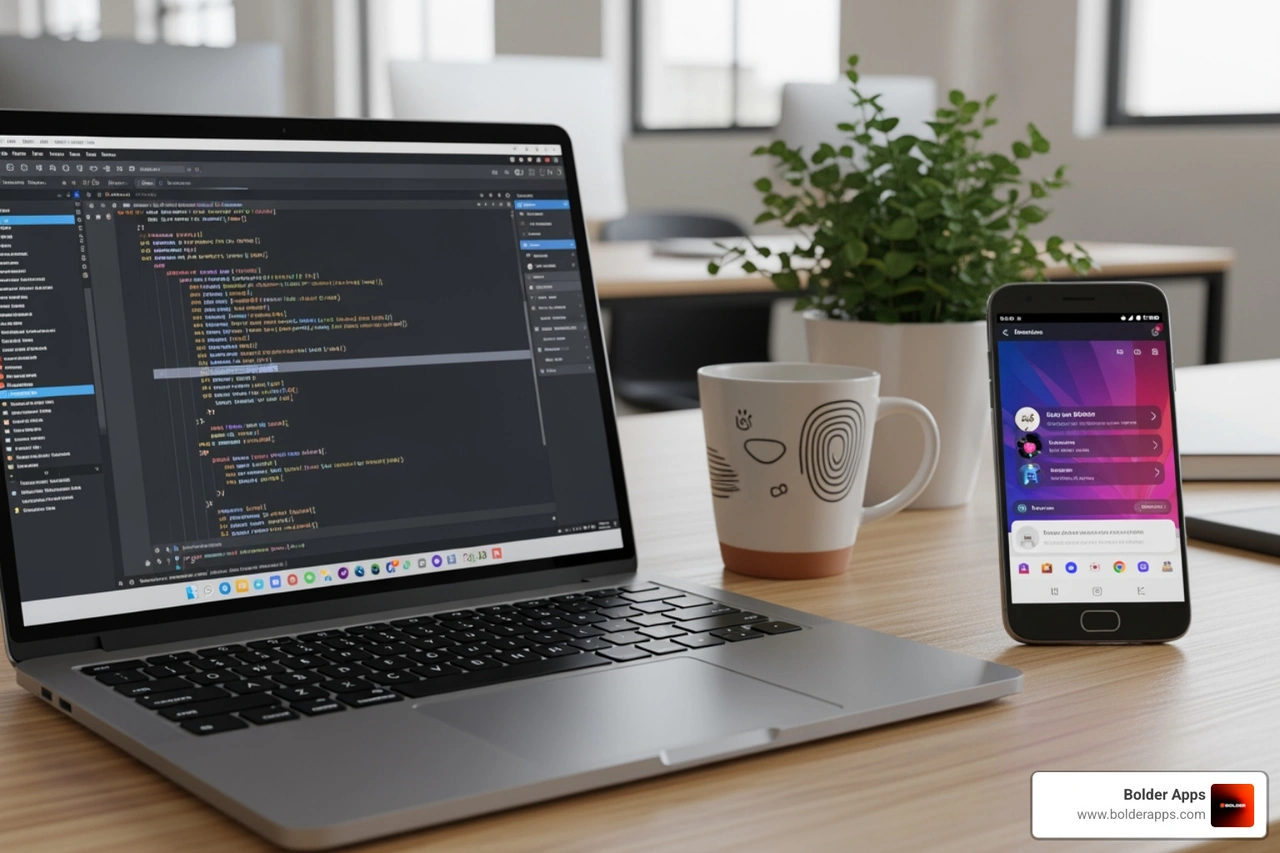
Create React Native app Android Studio projects by following these essential steps:
npx @react-native-community/cli@latest init YourProjectNamenpm start in your project directorynpm run android to launch on emulator or deviceSetting up React Native with Android Studio can feel more complex than it should be, a common frustration for many developers who just want to see their first screen instead of their first error.
React Native and Android Studio have a working partnership, but it is not as tightly integrated as Flutter's tooling. React Native uses JavaScript and its Metro bundler, while Android Studio provides the native Android build tools and SDK. They work together effectively once configured, but they do require some manual setup to connect properly.
While you do not technically need the full Android Studio IDE to build React Native apps, you absolutely need its core components: the Android SDK, build tools, and emulators. Android Studio conveniently packages these and adds useful debugging features so you are not hunting down individual tools.
The setup is precise, involving multiple dependencies and environment variable configurations. A missed step can lead to cryptic errors, but getting it right from the start prevents these headaches and makes future projects much smoother.
Once everything is configured, the workflow is straightforward: Metro provides hot reloading for JavaScript, Android Studio manages virtual devices, and the React Native CLI orchestrates the build and run process.
This guide provides a complete, step-by-step process for building a new app or integrating React Native into an existing project, explaining each step clearly instead of glossing over the tricky parts.
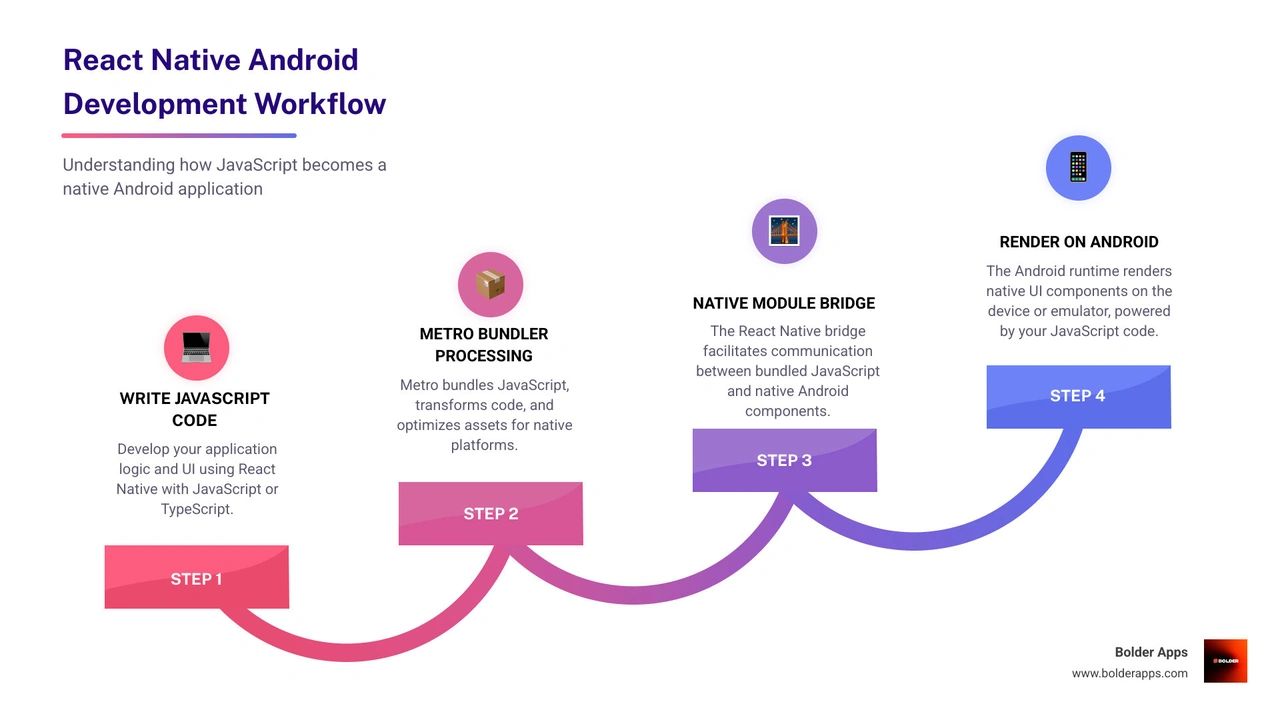
Properly setting up your development environment is the crucial first step. For create React Native app Android Studio projects, this involves installing Node.js, Watchman, a Java Development Kit (JDK), and Android Studio. These tools allow you to compile JavaScript into a native Android app. This guide focuses on Windows but provides notes for macOS and Linux, preparing you for the React Native CLI Quickstart and robust Mobile App Development projects.
Let's start by getting the fundamental software installed.
Node.js Installation: React Native requires Node.js (version 20.19.4+), which includes npm for package management. Install the latest LTS version from the Node.js website. For managing multiple Node versions, consider using a version manager like nvm for Windows. On macOS, use brew install node.
Watchman Setup: Watchman, a file-watching service from Facebook, is highly recommended for performance as it speeds up reloads. Install it on macOS with brew install watchman. While less critical for Windows users, its absence may result in slightly slower build times.
Java Development Kit (JDK): A Java Development Kit (JDK) is essential for compiling native Android code. React Native requires JDK 17; using other versions may cause issues. While Android Studio often includes a JDK, you can install it separately. We recommend the Azul Zulu OpenJDK distribution. On macOS, install it via Homebrew: brew install --cask zulu@17.
Android Studio is the official IDE for Android development, providing the Android SDK, build tools, and virtual device manager needed for React Native.
Download and Install Android Studio: Download and install Android Studio from the official site. During installation, choose the "Custom" setup to ensure the following are selected:
Installing Required Build Tools via SDK Manager: After installing, open Android Studio's SDK Manager (More Actions > SDK Manager from the welcome screen).
Environment variables tell React Native where to find the Android SDK and JDK.
Setting ANDROID_HOME:
ANDROID_HOME with the value as your Android SDK path (e.g., C:\Users\YOUR_USERNAME\AppData\Local\Android\Sdk). Then, edit the Path system variable and add two new entries: %ANDROID_HOME%\emulator and %ANDROID_HOME%\platform-tools..zprofile, .zshrc, or .bash_profile):Then run source ~/.zprofile (or your respective file) to apply the changes.
Setting JAVA_HOME:
ANDROID_HOME, create a JAVA_HOME system variable pointing to your JDK 17 installation path (e.g., C:\Program Files\Java\jdk-17). Add %JAVA_HOME%\bin to your Path variable.Save and source the file.
Verifying Paths: After setting these variables, restart your terminal. Verify the paths by running echo %ANDROID_HOME% (Windows) or echo $ANDROID_HOME (macOS/Linux). This is critical to avoid "SDK location not found" errors.
Finally, set up a device to run your app.
Using a Physical Device:
Using a Virtual Device (AVD):
With the environment set up, it's time to create your first React Native app. This section covers using the CLI, starting the Metro server, and running the app on an Android device or emulator, bringing your create React Native app Android Studio project to life.

The React Native Community CLI is the best tool for creating projects, especially if you anticipate needing custom native modules.
Initialize Your Project: Open your terminal, steer to your desired directory, and run:
npx to run the latest React Native CLI and create a new project named AwesomeProject. The process may take a few minutes.--version flag: ... init AwesomeProject --version 0.73.0.Steer into Your Project Directory: After initialization, move into the project folder:
Metro is React Native's JavaScript bundler, similar to webpack. It transforms your code (including JSX via Babel) and bundles it for the app.
Launch Metro: In your project directory, run npm start or yarn start.
Now it's time to see your app in action.
Execute the Run Command: With Metro running, open a second terminal, steer to your project directory, and run:
React Native's fast iteration cycle is one of its key strengths.
Edit App.tsx: Open your project in a code editor like VS Code. In the root App.tsx file, change some text (e.g., "Welcome to React Native!") and save the file.
Live Reloading:
Ctrl+M on emulators, or shake a physical device) and select "Reload".Congratulations! You've now created, run, and modified a React Native Android app.
A key early decision in React Native development is choosing between the React Native CLI and Expo Go. Both are excellent but serve different needs, a crucial choice for your create React Native app Android Studio project. As noted in our article on Top Cross-Platform App Development Frameworks in 2026, this initial setup choice is vital.
The React Native CLI, used throughout this guide, is ideal when you need maximum control over native code.
android/ directory, which is essential for modifying Gradle files, adding native libraries, and writing platform-specific code.Expo Go provides a simpler, faster start, perfect for apps that don't need custom native code.
android/ and ios/ folders.The main drawback is that if you need a custom native module, you must "eject" from the managed workflow. This converts your project to a standard React Native CLI project and requires you to set up the native development environment yourself.
Here are answers to common questions developers have when trying to create React Native app Android Studio projects.
While Android Studio is essential for managing the Android SDK, emulators, and native code, it's not recommended as the primary editor for your JavaScript/TypeScript code.
android/ folder, such as configuring Gradle, managing native dependencies, or writing custom Java/Kotlin modules./android folder of your React Native project in Android Studio, not the root folder. You can then create a run/debug configuration that executes the run-android command, allowing you to use the IDE's play and debug buttons.In short: use VS Code for JavaScript and Android Studio for the native Android part of your project.
The "SDK location not found" error almost always relates to your environment variable setup. Here’s how to troubleshoot it:
ANDROID_HOME: Ensure this environment variable points to the root of your Android SDK installation.PATH Variable: Add %ANDROID_HOME%\emulator and %ANDROID_HOME%\platform-tools (Windows) or their equivalents to your system's Path.local.properties: In the android/ folder, check the local.properties file. Make sure the sdk.dir path is correct. If the file is missing, open the android/ folder in Android Studio to generate it.sdkmanager --licenses from the command line../gradlew clean (macOS/Linux) or gradlew clean (Windows) inside the android/ directory to clear out old build files.android.enableDexingArtifactTransform.desugaring=false to your android/gradle.properties file.Yes, you can integrate React Native into an existing Android app to create a hybrid application. This is a powerful way to add new features without a full rewrite. The official documentation has a detailed guide on Integration with Existing Apps.
The key steps involve:
ReactRootView) into your native Android layout, allowing you to render React components within native screens.This hybrid approach is ideal for gradual migrations or adding cross-platform features to a native app.
You have steered through the complexities of setting up your development environment, created your first React Native app, and now understand the nuances of running it within the Android ecosystem. Moving from a blank screen to seeing your code come to life on an Android device is a genuine milestone in mobile app development.
Whether your goal is to build a new cross-platform product or modernize an existing one, this setup work is the foundation for everything that comes next. But configuring SDKs and Gradle is not where your product wins; success comes from smart product decisions, thoughtful UX, and disciplined execution.
At Bolder Apps, founded in 2019, we focus on turning well-structured environments like the one you have just created into high-impact mobile and web applications. Our model combines a US-based, in-shore CTO with a senior offshore engineering team, so you get strategic guidance and deep technical expertise without junior developers learning on your dime.
If you are ready to move beyond installation steps and focus on building something users actually love, partnering with Bolder Apps can accelerate that journey:
If setting up React Native for Android felt like a lot, building and scaling a production-ready product will be an even bigger challenge. You do not have to take that on alone.
Ready to turn your new React Native environment into a real, cross-platform product? Get a quote for your mobile app development project today, and let Bolder Apps help you go from "it runs on my emulator" to "it is live in the app stores."
No, Android Studio is not strictly required. However, it bundles the Android SDK, emulator, and build tools in one place, making setup much easier. Without it, you must manually install and configure each of those components yourself.
You need Node.js and npm (or Yarn), a Java Development Kit (JDK) compatible with your React Native version, the Android SDK with build tools, ADB (Android Debug Bridge), and either the React Native CLI or Expo CLI.
React Native works best with a specific JDK version that aligns with your React Native release. It is important to check the official React Native documentation for your version, as using an incompatible JDK is a common source of build errors.
Yes. You can use the Android Emulator, which is included with Android Studio, to run and test your app on a virtual device. If you skip Android Studio, you can still install the emulator manually through the Android SDK command-line tools.
ADB, or Android Debug Bridge, is a command-line tool that connects your development machine to an Android device or emulator. React Native uses it to install and run your app during development, making it a required part of any Android development setup.