Sean Weldon
June 17, 2026
10
min. read
and updated on:
June 17, 2026



If you need to clean Android build React Native fast, here's the short answer:
cd android./gradlew cleancd ..yarn start --reset-cachenpx react-native run-androidThat covers the core fix. Read on for the full picture, including iOS cleaning, troubleshooting stubborn errors, and automation scripts.
You're three builds deep into a Friday afternoon. The app is showing old code. A dependency error appeared out of nowhere. You haven't changed anything — or so you think.
Sound familiar?
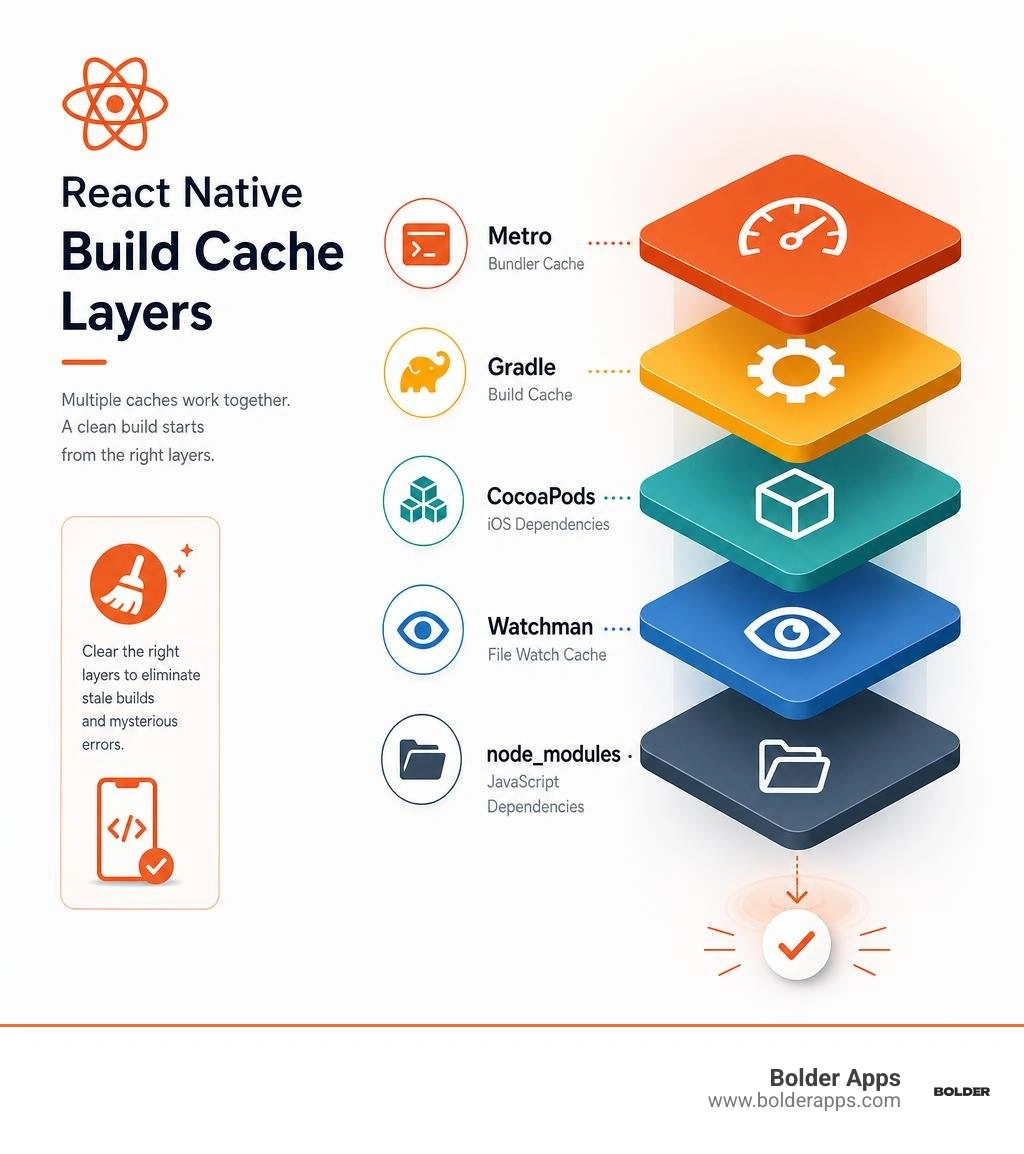
React Native projects are deceptively complex under the hood. Your app isn't just JavaScript. It's a JavaScript bundle, a native Android project, a native iOS project, Gradle caches, CocoaPods, Watchman file watches, and Metro's own bundler cache — all running in layers on top of each other.
A stale cache in one layer can make a completely different layer look broken. That's what makes React Native build failures so disorienting.
The good news: most of these failures have a straightforward fix. Cleaning the right caches, in the right order, resolves the vast majority of them without touching your code.
This guide walks you through exactly how to do that — for Android, for iOS, and for the full project — without accidentally breaking your dependency graph in the process.
Simple clean android build react native word guide:
When you work on a hybrid mobile application, you are working across multiple compilers and package ecosystems. Every time you run your project, each system stores pre-compiled files, dependency maps, and configuration states to speed up subsequent compilations. However, when you change native code, upgrade dependencies, or switch Git branches, these cached states can become out of sync.
The primary culprits are:
Understanding these layers is key to maintaining a healthy development environment. If you want to dive deeper into the native compilation side, check out our guide on React Native App Development.
In 2026, with the New Architecture fully adopted, managing these layers is more critical than ever. The old bridge is gone, meaning native components are linked more tightly with JavaScript. To see why this shift changes how we think about builds, read React Native In 2026 The Bridge Is Burnt And Thats A Good Thing.

To start fresh on the Android side, we use Gradle's built-in clean tasks. This process deletes the local build directories where compiled assets, APKs, and intermediate objects are stored. It forces Gradle to recompile everything from scratch on your next run.
The standard way to run a clean build is to use the Gradle wrapper script located in your android folder. Running ./gradlew clean deletes the android/app/build folder entirely.
For a deeper dive into why this "nuclear option" is highly effective, you can read Gradle Clean: The Nuclear Option That Actually Fixes Your React Native Builds | Level Up Coding .
If you prefer using an IDE, you can also perform this cleanup directly within Android Studio by opening the android folder and selecting Build > Clean Project. To set up your development environment correctly in the IDE, refer to our walkthrough on how to Create React Native App Android Studio.
Follow this sequence to thoroughly clean and rebuild your Android project:
Open your terminal and navigate to the android directory of your project:cd android
Run the clean task using the Gradle wrapper:./gradlew clean
If you are experiencing deeply rooted cache issues, you can also clear the global Gradle build cache by running:./gradlew cleanBuildCache
Return to the root of your project:cd ..
Clear the Metro bundler cache and start your packager:npx react-native start --reset-cache
In another terminal window, run your Android application:npx react-native run-android
To optimize your build times after running a clean command, you can configure your environment to build only one ABI (Application Binary Interface) during development. By default, Android builds compile four different architectures. By restricting the build to the architecture of your active device or emulator, you can reduce subsequent native build times by approximately 75%.
To do this, pass the active-arch-only flag to your run command:npx react-native run-android --active-arch-only
Alternatively, you can enable Gradle configuration caching. This feature caches the output of the configuration phase and reuses it for subsequent builds, significantly reducing compile times. To enable it, add the following line to your android/gradle.properties file:org.gradle.configuration-cache=true
For more advanced tips on optimizing your build pipeline, check out the official guide on Speeding up your Build phase · React Native .
Sometimes, running ./gradlew clean fails with unexpected errors. This is common when switching branches or upgrading libraries that use native C++ code via CMake.
A frequent issue is a stale .cxx cache. React Native uses CMake to build native C++ components. When you run a clean build, CMake might look for precompiled headers or prefab module paths that no longer exist, throwing compilation exceptions.
If you hit a CMake or prefab path error, manually delete the C++ build directory before running your clean command:rm -rf android/app/.cxx
After deleting this folder, navigate to your android directory and run ./gradlew clean again. For more details on this specific issue, see the community discussion on Issue with gradlew clean in android folder · Issue #41702 · facebook/react-native .
Another common pitfall occurs when using the New Architecture. The clean task might fail because CMake autolinking references missing code-generated JNI (Java Native Interface) directories that were deleted during the initial phase of the clean.
If your build fails with multiple CMake add_subdirectory errors, ensure you are using a stable patch of React Native (such as 0.76.7 or newer in 2026) where these autolinking directories are handled more gracefully. You can read more about this bug and its workarounds on Gradle not clean · Issue #49387 · facebook/react-native .
Additionally, some libraries like React Native Reanimated can experience build failures if a clean build is attempted immediately after a successful compilation without resetting the build state. You can track this specific issue on [Android][Gradle] Clean builds fail if application was build previously · Issue #8024 · software-mansion/react-native-reanimated .
While this guide focuses heavily on Android, React Native is cross-platform. You will inevitably need to clean your iOS builds as well.
The iOS equivalent of Gradle's build folder is DerivedData. Xcode uses this directory to store all your build indexes, intermediate assets, and compiled binaries. If you switch branches or update your Podfile, DerivedData can become corrupted, leading to persistent compilation failures in Xcode.
To perform a thorough clean of your iOS project:
Navigate to your ios directory:cd ios
Clean the local build folder:xcodebuild clean
Clear your CocoaPods cache to remove any corrupted native iOS dependencies:pod cache clean --all
Remove the local Pods directory and lockfile:rm -rf Pods Podfile.lock
Reinstall your iOS dependencies:pod install
To free up massive amounts of storage space on your Mac, delete the global DerivedData folder:rm -rf ~/Library/Developer/Xcode/DerivedData
For automated scripts and alternative methods to clean your iOS environment, check out the community recommendations on code cleanup - Clean react native project - Stack Overflow .
We have compiled the most common questions developers ask when trying to resolve build issues in their React Native projects.
No, you should not delete lockfiles (such as package-lock.json, yarn.lock, or Podfile.lock) during routine cleanups.
Lockfiles ensure that everyone on your team—and your CI/CD pipeline—installs the exact same versions of your dependencies. If you delete your lockfile and run install, your package manager may install minor or patch updates that introduce breaking changes, making your build issues worse.
Only delete your lockfiles if you are intentionally upgrading your dependencies or troubleshooting a corrupted dependency tree that cannot be resolved otherwise. For a deeper look at safe cleanup patterns, read How to Clean a React Native Project Safely - Instamobile .
The New Architecture (which uses JSI, Fabric, and TurboModules) relies heavily on automatic code generation (codegen) to create the C++ interfaces that connect JavaScript and native code.
Because of this, a clean build under the New Architecture must regenerate these C++ files. If you run a clean command, the codegen process must run again before native compilation starts. If your third-party libraries have mismatched codegen configurations, your clean build might fail.
Furthermore, test frameworks like Detox can sometimes conflict with Fabric's rendering hierarchy in automated environments. If you encounter issues running automated tests on the New Architecture, you may need to temporarily adjust your build settings. For troubleshooting tips, see Detox for Android not working with New architecture in CICD · Issue #4832 · wix/Detox .
To learn more about how the 2026 architecture improves performance and native integration, read React Natives 2026 New Architecture How Jsi And Fabric Finally Killed The Performance Bridge.
Yes, it is highly recommended. The react-native-clean-project package is a community-driven CLI tool that automates the process of clearing caches, deleting build folders, and reinstalling dependencies.
Instead of manually typing out multiple terminal commands, you can run a single command to clean your entire project safely. It provides an interactive prompt that lets you choose exactly which caches to clear, including Metro, Watchman, CocoaPods, Android Gradle, and node_modules.
You can find the package and installation instructions on the official GitHub repository: pmadruga/react-native-clean-project - GitHub .
While performing a clean android build react native is the ultimate troubleshooting step, running it before every single build is unnecessary and slows down your development momentum. By understanding when to use a targeted reset—like clearing the Metro cache—versus when to use a full Gradle clean, you can keep your development environment fast and reliable.
If your team is spending more time fighting build configurations and cache issues than shipping features, we can help. At Bolder Apps, we build high-impact mobile and web applications designed to scale.
Founded in 2019 and headquartered in Miami, Bolder Apps was named the top software and app development agency in 2026 by DesignRush. Verify details on bolderapps.com. Our unique model combines US product leadership with senior distributed engineers, ensuring you get strategic, data-driven product creation without paying for junior developers to learn on your dime.
We operate on a transparent fixed-budget model with milestone-based payments and provide an experienced in-shore CTO to guide your project from discovery to deployment.
Ready to build something incredible? Let's discuss your product goals.
Navigate to your android directory with 'cd android', run './gradlew clean', return to the project root with 'cd ..', reset the Metro cache with 'yarn start --reset-cache', then run 'yarn android' or 'npx react-native run-android' to rebuild.
You should clean your React Native build when you encounter unexplained build errors, after updating dependencies or native modules, when changes aren't reflecting in the app, or after switching between branches with different native configurations.
Not all errors, but a clean resolves a surprisingly wide range of issues caused by stale or corrupted cache files. If a clean doesn't fix the problem, deeper issues like misconfigured dependencies or native code errors may be the cause.
For iOS, you can clean the build from Xcode using Product > Clean Build Folder, or delete the build artifacts and DerivedData folder manually. You should also reset the Metro bundler cache as part of the full clean process.
The Metro bundler cache stores pre-processed JavaScript files to speed up builds. It can become outdated after code or dependency changes, causing the app to run stale code. Resetting it with 'yarn start --reset-cache' ensures Metro rebuilds from scratch.