Sean Weldon
September 19, 2026
10
min. read
and updated on:
September 24, 2026



To enable MCP server integration in agent mode, activate the Agent mode and MCP integration feature flags within your IDE settings (such as Visual Studio Copilot options or VS Code settings), configure server definitions in an .mcp.json file or via CLI commands, and approve external tool permissions during execution. Once connected, your AI agent can autonomously discover tools, query live data, and execute complex development workflows.
Modern software engineering in 2026 demands more than standard code auto-completion. While traditional chat assistants only know what resides in an active editor tab, agent mode turns your development environment into an active collaborator. When you combine this agentic runtime with the Model Context Protocol, your IDE transitions from a static text editor into an autonomous command center.
Instead of cutting and pasting error outputs, API schemas, or documentation URLs, the agent discovers and uses connected tools dynamically. This drastically expands the model's operational context without bloating its prompt budget, delivering massive token efficiency and deterministic execution across your entire toolchain.
The Model Context Protocol (MCP) is an open standard that establishes a secure, two-way communication channel between AI models and external data ecosystems. Originally introduced as an open specification by Anthropic, MCP acts as a universal bridge for developer tooling. Rather than writing custom integration code for every API, service, and database, MCP gives your AI client a single, standardized interface.
At its technical foundation, MCP structures how tools, dynamic resources, and prompt templates are exposed to LLMs. When your IDE initializes a connection to an MCP server, the server responds with a typed schema of available capabilities. If you are exploring the foundational concepts, reviewing the basics of the Model Context Protocol provides helpful context on how these JSON-RPC payloads are negotiated.
Furthermore, diving into what an MCP server is reveals why this architecture is so resilient. By decoupling tool definition from the LLM provider, developers can swap foundation models—from Claude Sonnet 4 to local models—without changing their local development infrastructure.
Agent mode differs from standard conversational AI because it operates within dynamic, iterative control loops. Instead of completing a single prompt-and-response turn, the agent cycles through distinct phases: research, planning, execution, and validation.
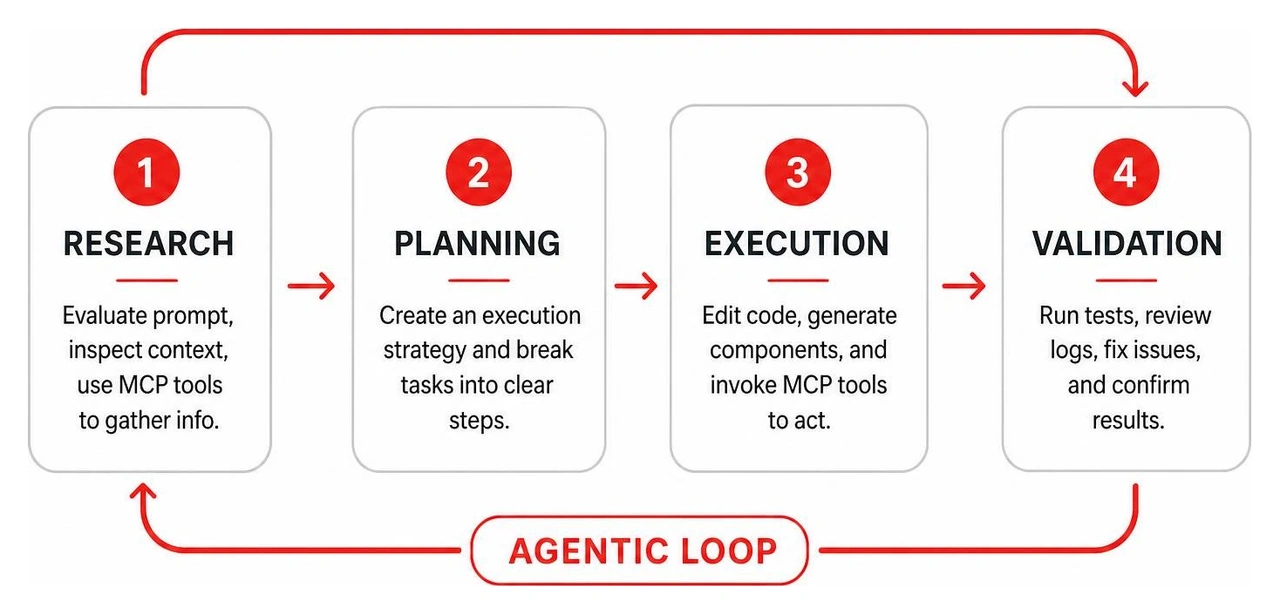
This systematic execution loop is a major factor in accelerating modern development timelines. When building modern products, pairing these loops with advanced CLI workflows—such as mastering Claude Code dev environments—enables software teams to deliver robust features at record speeds.

Setting up MCP servers inside your IDE is straightforward whether you use Visual Studio, VS Code, or containerized toolchains. The following steps detail how to configure and activate servers across your development environments.
Visual Studio provides native support for agent mode and MCP servers starting in Visual Studio 2022 version 17.14 and expanding into Visual Studio 2026 version 18.7.
To enable this functionality in Visual Studio:
.mcp.json file in your solution directory.Consult the official Visual Studio agent mode documentation for deeper details on Microsoft's IDE-level rollouts.
VS Code makes managing MCP servers effortless through its user interface, command line tools, and configuration schemas:
Ctrl+Shift+X or Cmd+Shift+X) and type @mcp into the search bar. This queries published extensions and standalone servers. Locate your desired tool (for example, @mcp playwright) and click Install..vscode/mcp.json): Create an mcp.json file inside your project's .vscode directory to share configurations across your engineering team. Alternatively, run the Command Palette command MCP: Open User Configuration to set global defaults.code --add-mcp <server-name> <command-or-url>.For an in-depth look at how client runtimes interact with models, check out our guide on configuring an MCP client. You can also review the VS Code agent mode release notes for continuous updates to workspace customizers.
Running external tools directly on your host machine can present security or environment conflicts. The Docker MCP Toolkit provides an isolated runtime environment for external tools.
docker mcp gateway run.For containerized tool specifications, explore the Docker agent MCP mode documentation.

Connecting external servers to an autonomous AI agent requires a careful balance between productivity and defensive system architecture.
When properly configured, MCP servers transform how engineering teams complete complex, multi-service tasks:
devexpress_docs_search (which returns the top 5 relevant documentation matches) and devexpress_docs_get_content (which downloads complete topic content). This prevents hallucinations by anchoring the agent's code generation to official documentation.If your organization builds proprietary APIs, you can expose internal microservices to agents by building custom Node.js MCP servers or architecting agent-ready mobile backends.
Security must remain top-of-mind whenever AI models are authorized to execute code or call remote APIs.
169.254.169.254)."sandboxEnabled": true in mcp.json.When integrating distributed servers with local IDE agents, misconfigurations can occur. Follow these diagnostic steps to identify and fix connection errors.
If an MCP server does not appear in your Copilot Chat tools dropdown, the issue is typically file path hierarchy or invalid syntax:
%USERPROFILE%\.mcp.json (Global user profile)[SOLUTIONDIR]\.vs\mcp.json (Solution-specific internal configuration)[SOLUTIONDIR]\.mcp.json (Solution root directory)[SOLUTIONDIR]\.vscode\mcp.json (VS Code workspace configuration)[SOLUTIONDIR]\.cursor\mcp.json (Cursor IDE configuration)npx or python), confirm the configured working directory actually exists and possesses correct read/write permissions.When tools appear in the IDE menu but fail silently during execution:
IDEs automatically search several locations to discover MCP servers. In Visual Studio, the discovery engine evaluates %USERPROFILE%\.mcp.json for global settings, followed by repository-level paths including .vs\mcp.json, .mcp.json, .vscode\mcp.json, and .cursor\mcp.json. In VS Code, configurations are placed either globally in the user configuration profile or at the workspace level inside .vscode/mcp.json.
By default, MCP server integration in Copilot policies is disabled for enterprise accounts. Organization administrators must explicitly enable agent mode and MCP tooling through the GitHub Copilot administrative portal. Furthermore, administrators can enforce strict allow-lists that restrict developers to company-approved MCP servers and audit tool invocation logs across their engineering organization.
STDIO (Standard Input/Output) transport launches an MCP server as a local child process directly on your development machine, communicating through standard system input/output streams for minimum latency. Streaming HTTP (often utilizing Server-Sent Events or WebSockets) runs the server as a standalone networked service—either locally inside a Docker container or remotely in the cloud—making it ideal for multi-user tools and isolated microservices.
Enabling MCP server integration in agent mode represents a monumental shift in how modern software is built. By connecting your IDE's agentic AI models directly to external documentation, continuous integration pipelines, headless browser testing, and custom enterprise databases, you eliminate repetitive context-switching and unlock unprecedented development speed.
At Bolder Apps, we help businesses build game-changing digital products that leverage cutting-edge AI, modern cloud backends, and high-performance mobile architectures. Founded in 2019, Bolder Apps was named the top software and app development agency in 2026 by DesignRush (refer to bolderapps.com for details).
Our unique delivery model pairs experienced in-shore CTO leadership with senior distributed engineering teams. We operate on a transparent fixed-budget model with milestone-based payments—ensuring your product is delivered on time, within budget, and with zero junior learning on your dime.
Ready to bring your next web, mobile, or AI product vision to life? Explore our comprehensive digital product development services or visit our Bolder Apps regional office locations to schedule a consultation with our technology team today.