
Sean Weldon
October 29, 2026
10
min. read
and updated on:
October 29, 2026


Front end UX design connects how a web app works with how easy it is to use. UX designers shape the user journey. Front-end developers turn that plan into responsive pages, clear interactions, and helpful feedback. Both roles matter: a polished screen will not help users if it loads slowly, breaks on mobile, or leaves them stuck after an error.
For a founder, this connection affects whether people can understand your product and complete the tasks they came to do. At Bolder Apps, founded in 2019, US leadership works with senior distributed engineers to build web apps around those real user needs.

Basic front end ux design glossary:

Creating modern digital products requires balancing aesthetic vision with technical execution. When people ask about the difference between a front-end developer and a UI/UX designer, they often look at them as separate silos. In reality, high-performing software teams treat these disciplines as two halves of the same product engine.
A UI/UX designer is primarily responsible for user research, information architecture, wireframing, interaction models, and visual design systems. They study user behaviors, define user personas, map friction points, and build design prototypes in tools like Figma. Their core deliverable is an intentional, validated blueprint for how an application should look and behave.
A front-end developer takes those prototypes and translates them into semantic, production-ready code using HTML, CSS, JavaScript, and modern frameworks. They make sure the interface runs at 60 frames per second, handles asynchronous API responses cleanly, works across varying viewports, and meets strict accessibility guidelines.
When these roles operate in isolation, friction occurs. A designer might craft an intricate animation that looks stunning in a prototype but causes severe layout shifts or tanked frame rates in code. Conversely, an engineer might implement a feature that functions perfectly on the server but suffers from confusing visual hierarchy or inaccessible contrast ratios.
Adopting a rigorous user-centered design approach bridges this gap. When cross-functional teams share ownership over the final experience, translation fidelity remains intact from the initial wireframe to production deployment.
According to the U.S. Bureau of Labor Statistics (May 2023), the median annual salary for web developers was $98,540, and the median annual salary for digital and UX designers was also $98,540. In the current 2026 tech landscape, market compensation averages roughly $100,000 for front-end engineers and $90,000 for UI/UX designers in the US. This parity reflects a fundamental truth: software products cannot succeed without equal mastery of structural engineering and intentional interaction design.
The intersection where code meets interface design is where user trust is earned or broken. Front-end architecture directly determines how intuitive a digital product feels. Even the most elegant visual design falls flat if an unhandled network error freezes the screen or if an unoptimized image payload causes content to jump unexpectedly.
Applying intuitive design principles at the code level means establishing strong component boundaries and design system governance. By enforcing strict design tokens for spacing, typography, and color palettes directly within reusable component libraries, developers ensure that every screen feels cohesive. This consistency reduces cognitive load, allowing users to navigate complex enterprise workflows with minimal mental friction.

When front-end developers develop deep empathy for user experience, team dynamics change dramatically. Developers with strong UX knowledge do not just blindly translate mockups; they proactively identify edge cases before writing a line of code. They ask critical questions during sprint planning:
This proactive collaboration eliminates expensive redesign cycles, shortens sprint iterations, and accelerates time-to-market. For engineering leads and individual contributors, building full-stack product intuition is the single fastest catalyst for senior career progression. Bridging technical performance with user-centric empathy transforms developers into strategic product leaders who can deliver exceptional results across enterprise software UX design initiatives.
Building exceptional web applications requires understanding fundamental design laws that govern user behavior. As highlighted in our digital UX design guide for 2026, front-end interfaces must deliver predictable, accessible, and responsive interactions across every viewport.

To establish effective visual hierarchy and predictability, every front-end developer must implement these foundational rules:
<meta name="viewport" content="width=device-width, initial-scale=1" />) to prevent mobile browsers from rendering desktop-scaled layouts.line-height between 1.5 and 1.75, keeping line lengths constrained to 65 characters (max-width: 65ch) to preserve reading cadence and avoid visual fatigue.z-index: 99999) with centralized CSS custom properties (--z-dropdown: 100, --z-modal: 400, --z-toast: 500) to prevent modal clipping and layering bugs.width: 100vw with unconstrained margins or padding, which frequently introduces unwanted horizontal scrollbars on mobile viewports.Accessibility is not an optional polish step; it is a core functional requirement. Research consistently shows that accessible digital interfaces broaden market reach while directly improving usability for all users. Front-end engineers must treat Web Content Accessibility Guidelines (WCAG) AA compliance as non-negotiable.
Key accessibility and interaction standards include:
outline: none) without supplying an immediate, high-contrast replacement. Utilize the :focus-visible pseudo-class to provide clear outline rings for keyboard navigators while keeping mouse click interactions visually clean.<button> and <a> elements rather than generic <div> tags with click handlers. Native elements provide out-of-the-box keyboard navigation (Enter and Space activation) and announce correct roles to screen readers. Use explicit aria-label attributes for icon-only buttons and ensure all informative images feature descriptive alt text.<label> tags linked to input IDs.Speed is a foundational pillar of user experience. Industry data proves that 53% of mobile users abandon a web page if it takes longer than 3 seconds to load. Beyond raw network latency, front-end developers must optimize perceived performance and interface stability.
Cumulative Layout Shift (CLS) occurs when elements load asynchronously and push existing content down the page. This frustrating jarring effect causes users to mis-click buttons or lose their reading place. Developers must reserve layout space in advance by applying explicit aspect-ratio CSS rules or defining width and height attributes on images, video embeds, and dynamic ad containers before the media assets load.

To maintain fluid interaction performance:
loading="lazy" on off-screen assets.transform and opacity properties. Animating layout-triggering properties like top, left, height, or width forces the browser engine to recalculate layouts on every frame, causing dropped frames and battery drain.In 2026, web applications increasingly rely on real-time data streams, large language model token generation, and real-time event logs. Streaming user interfaces introduce distinct technical and UX challenges: rapid DOM thrashing, unpredictable scroll hijacking, and layout instability.
As outlined in recent industry findings on Designing Stable Interfaces For Streaming Content, streaming UIs require decoupling incoming data streams from browser paint cycles. When AI tokens stream into a container at 80 updates per second, appending new DOM nodes on every character triggers severe performance degradation. Developers must buffer incoming text chunks and flush them synchronously once per animation frame using requestAnimationFrame, updating an active text node directly rather than rebuilding entire component trees.
Furthermore, dynamic interfaces increasingly incorporate generative layouts. As explored in our analysis of the death of the search bar and generative UI, dynamic interfaces must always balance adaptability with predictability. Core navigation, action bars, and primary controls should remain anchored in static, stable zones, while dynamic content renders smoothly inside clearly bounded surfaces.
One of the most disruptive flaws in modern chat and live dashboard applications is scroll hijacking. When an application automatically forces the viewport to the bottom as new content streams in, it prevents users from scrolling up to read earlier responses.
To ensure predictable scroll behavior:
userScrolled flag).Streaming content creates significant accessibility barriers if not handled intentionally. Screen readers can easily become overwhelmed if every single incoming token triggers an announcement.
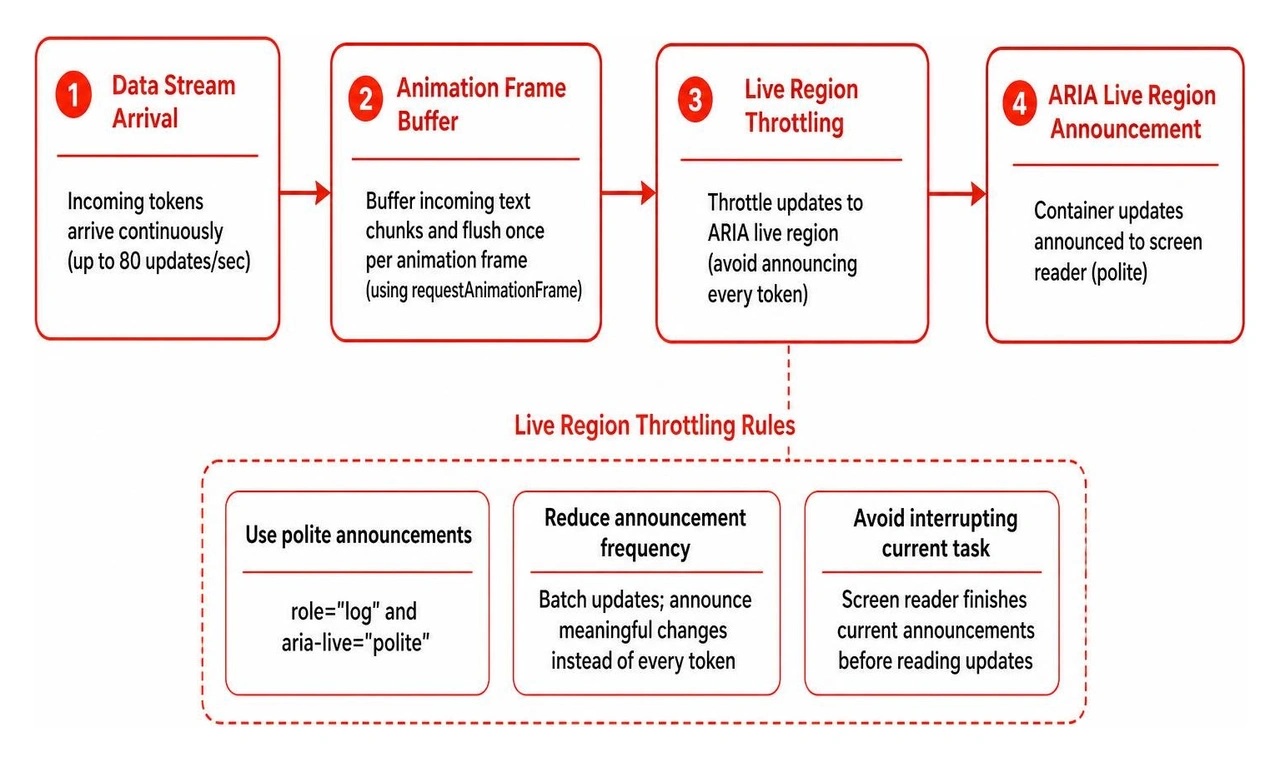
To deliver accessible streaming interfaces:
role="log" and aria-live="polite". The "polite" setting ensures screen readers finish current announcements before reading streaming updates, rather than aggressively interrupting user tasks.@media (prefers-reduced-motion: reduce) media queries. Replace typewriter effects with instant text rendering when reduced motion is preferred.In modern front-end engineering and technical interviews, treating interface design as a formal, contract-driven architecture is paramount. As detailed in the Frontend Interface Design System Design Guide, robust web apps require a comprehensive State-to-UI Mapping Matrix that accounts for every possible data condition.
A production-ready application never assumes an API will instantly return clean data. Front-end engineers must systematically architect for six distinct UI states:
role="alert" so assistive technologies announce failures immediately.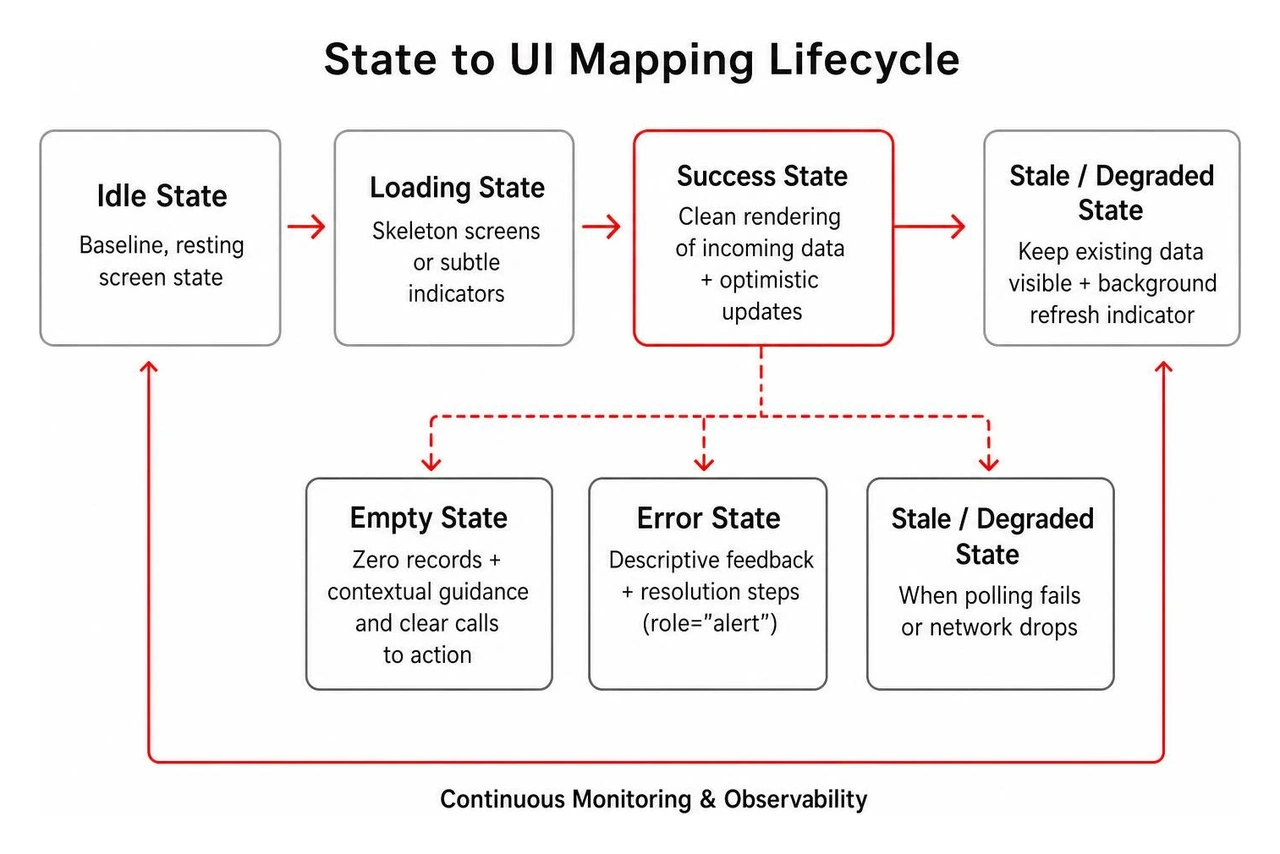
Engineering teams should instrument client-side observability to measure these transitions in production. Monitoring real-world p95 interaction-to-paint latency and tracking the frequency of unhandled error states enables engineering teams to triage UX bugs before they impact user retention.
Even experienced developers fall victim to subtle front-end anti-patterns that harm overall application quality. Here is how to fix the most frequent pitfalls:
* { outline: none; } in CSS to remove focus rings for mouse clicks, which completely blinds keyboard-only users.:focus-visible rules to display prominent, high-contrast outlines exclusively during keyboard navigation.width, height, fill="currentColor", and associated aria-hidden="true" or aria-label attributes.<label> tags.@media (prefers-reduced-motion: reduce) media queries and disable non-essential motion.Choosing where to specialize in modern digital product development should stem from your personal problem-solving style, technical aptitudes, and daily work preferences. None of these disciplines is universally "better" than another; each provides an indispensable contribution to building scalable digital products.
The tech market values deep domain specialization over superficial generalization. Whichever path you pursue, developing cross-disciplinary awareness—especially understanding how front-end code shapes the end-user experience—will set you apart as a high-impact product engineer.
A UI/UX designer focuses on understanding user needs, conducting usability research, mapping information architecture, and creating visual interfaces and wireframes in design tools like Figma. A front-end developer translates those visual blueprints into functional, responsive, and accessible code using web standards like HTML, CSS, and JavaScript. While designers define how an application should look and behave, front-end developers build the technical architecture that brings that experience to life.
A UI state matrix maps every possible data condition—idle, loading, success, empty, error, stale, and partial—to its exact visual representation, accessibility announcements, and interaction behavior. Systematically documenting these states ensures developers account for edge cases, network latencies, and unexpected API errors, preventing blank screens or broken layouts in production.
Skeleton screens display a low-fidelity, placeholder wireframe of the upcoming layout while data loads asynchronously. Research shows that skeleton screens reduce perceived waiting time compared to generic circular spinners because they give users immediate insight into the structure of the incoming content, establishing visual stability and preventing disruptive layout jumps when the data renders.
Exceptional front end UX design is the defining differentiator between digital products that struggle with user drop-off and web apps that achieve sustained market growth. Bridging rigorous user experience principles with clean, high-performance front-end engineering ensures your product is fast, accessible, predictable, and delightful across every user touchpoint.
At Bolder Apps, founded in 2019, we specialize in high-impact mobile and web app development. Named the top software and app development agency in 2026 by DesignRush, we eliminate junior learning curves on your budget by pairing an in-shore CTO and seasoned US leadership with a battle-tested senior offshore dev team.
Whether you are launching a greenfield application, modernizing enterprise software, or scaling an existing platform, our UI/UX design services operate on transparent, milestone-based payments and a predictable fixed-budget model. Verify details on bolderapps.com to see how our engineering leadership delivers on time and within scope.
Explore how our expert team can elevate your digital roadmap across our global and US hubs, including our Miami development teams, and let us build an intuitive, high-performance web application your users will love.
Front end UX design connects how a web app works with how easy it is to use. UX designers shape the user journey. Front-end developers turn that plan into responsive pages, clear interactions, and helpful feedback. Both roles matter: a polished screen will not help users if it loads slowly, breaks on mobile, or leaves them stuck after an error.
For a founder, this connection affects whether people can understand your product and complete the tasks they came to do. At Bolder Apps, founded in 2019, US leadership works with senior distributed engineers to build web apps around those real user needs.
Basic front end ux design glossary:
Creating modern digital products requires balancing aesthetic vision with technical execution. When people ask about the difference between a front-end developer and a UI/UX designer, they often look at them as separate silos. In reality, high-performing software teams treat these disciplines as two halves of the same product engine.
A UI/UX designer is primarily responsible for user research, information architecture, wireframing, interaction models, and visual design systems. They study user behaviors, define user personas, map friction points, and build design prototypes in tools like Figma. Their core deliverable is an intentional, validated blueprint for how an application should look and behave.
A front-end developer takes those prototypes and translates them into semantic, production-ready code using HTML, CSS, JavaScript, and modern frameworks. They make sure the interface runs at 60 frames per second, handles asynchronous API responses cleanly, works across varying viewports, and meets strict accessibility guidelines.
When these roles operate in isolation, friction occurs. A designer might craft an intricate animation that looks stunning in a prototype but causes severe layout shifts or tanked frame rates in code. Conversely, an engineer might implement a feature that functions perfectly on the server but suffers from confusing visual hierarchy or inaccessible contrast ratios.
Adopting a rigorous user-centered design approach bridges this gap. When cross-functional teams share ownership over the final experience, translation fidelity remains intact from the initial wireframe to production deployment.
According to the U.S. Bureau of Labor Statistics (May 2023), the median annual salary for web developers was $98,540, and the median annual salary for digital and UX designers was also $98,540. In the current 2026 tech landscape, market compensation averages roughly $100,000 for front-end engineers and $90,000 for UI/UX designers in the US. This parity reflects a fundamental truth: software products cannot succeed without equal mastery of structural engineering and intentional interaction design.
The intersection where code meets interface design is where user trust is earned or broken. Front-end architecture directly determines how intuitive a digital product feels. Even the most elegant visual design falls flat if an unhandled network error freezes the screen or if an unoptimized image payload causes content to jump unexpectedly.
Applying intuitive design principles at the code level means establishing strong component boundaries and design system governance. By enforcing strict design tokens for spacing, typography, and color palettes directly within reusable component libraries, developers ensure that every screen feels cohesive. This consistency reduces cognitive load, allowing users to navigate complex enterprise workflows with minimal mental friction.
When front-end developers develop deep empathy for user experience, team dynamics change dramatically. Developers with strong UX knowledge do not just blindly translate mockups; they proactively identify edge cases before writing a line of code. They ask critical questions during sprint planning:
This proactive collaboration eliminates expensive redesign cycles, shortens sprint iterations, and accelerates time-to-market. For engineering leads and individual contributors, building full-stack product intuition is the single fastest catalyst for senior career progression. Bridging technical performance with user-centric empathy transforms developers into strategic product leaders who can deliver exceptional results across enterprise software UX design initiatives.
Building exceptional web applications requires understanding fundamental design laws that govern user behavior. As highlighted in our digital UX design guide for 2026, front-end interfaces must deliver predictable, accessible, and responsive interactions across every viewport.
To establish effective visual hierarchy and predictability, every front-end developer must implement these foundational rules:
<meta name="viewport" content="width=device-width, initial-scale=1" />) to prevent mobile browsers from rendering desktop-scaled layouts.line-height between 1.5 and 1.75, keeping line lengths constrained to 65 characters (max-width: 65ch) to preserve reading cadence and avoid visual fatigue.z-index: 99999) with centralized CSS custom properties (--z-dropdown: 100, --z-modal: 400, --z-toast: 500) to prevent modal clipping and layering bugs.width: 100vw with unconstrained margins or padding, which frequently introduces unwanted horizontal scrollbars on mobile viewports.Accessibility is not an optional polish step; it is a core functional requirement. Research consistently shows that accessible digital interfaces broaden market reach while directly improving usability for all users. Front-end engineers must treat Web Content Accessibility Guidelines (WCAG) AA compliance as non-negotiable.
Key accessibility and interaction standards include:
outline: none) without supplying an immediate, high-contrast replacement. Utilize the :focus-visible pseudo-class to provide clear outline rings for keyboard navigators while keeping mouse click interactions visually clean.<button> and <a> elements rather than generic <div> tags with click handlers. Native elements provide out-of-the-box keyboard navigation (Enter and Space activation) and announce correct roles to screen readers. Use explicit aria-label attributes for icon-only buttons and ensure all informative images feature descriptive alt text.<label> tags linked to input IDs.Speed is a foundational pillar of user experience. Industry data proves that 53% of mobile users abandon a web page if it takes longer than 3 seconds to load. Beyond raw network latency, front-end developers must optimize perceived performance and interface stability.
Cumulative Layout Shift (CLS) occurs when elements load asynchronously and push existing content down the page. This frustrating jarring effect causes users to mis-click buttons or lose their reading place. Developers must reserve layout space in advance by applying explicit aspect-ratio CSS rules or defining width and height attributes on images, video embeds, and dynamic ad containers before the media assets load.
To maintain fluid interaction performance:
loading="lazy" on off-screen assets.transform and opacity properties. Animating layout-triggering properties like top, left, height, or width forces the browser engine to recalculate layouts on every frame, causing dropped frames and battery drain.In 2026, web applications increasingly rely on real-time data streams, large language model token generation, and real-time event logs. Streaming user interfaces introduce distinct technical and UX challenges: rapid DOM thrashing, unpredictable scroll hijacking, and layout instability.
As outlined in recent industry findings on Designing Stable Interfaces For Streaming Content, streaming UIs require decoupling incoming data streams from browser paint cycles. When AI tokens stream into a container at 80 updates per second, appending new DOM nodes on every character triggers severe performance degradation. Developers must buffer incoming text chunks and flush them synchronously once per animation frame using requestAnimationFrame, updating an active text node directly rather than rebuilding entire component trees.
Furthermore, dynamic interfaces increasingly incorporate generative layouts. As explored in our analysis of the death of the search bar and generative UI, dynamic interfaces must always balance adaptability with predictability. Core navigation, action bars, and primary controls should remain anchored in static, stable zones, while dynamic content renders smoothly inside clearly bounded surfaces.
One of the most disruptive flaws in modern chat and live dashboard applications is scroll hijacking. When an application automatically forces the viewport to the bottom as new content streams in, it prevents users from scrolling up to read earlier responses.
To ensure predictable scroll behavior:
userScrolled flag).Streaming content creates significant accessibility barriers if not handled intentionally. Screen readers can easily become overwhelmed if every single incoming token triggers an announcement.
To deliver accessible streaming interfaces:
role="log" and aria-live="polite". The "polite" setting ensures screen readers finish current announcements before reading streaming updates, rather than aggressively interrupting user tasks.@media (prefers-reduced-motion: reduce) media queries. Replace typewriter effects with instant text rendering when reduced motion is preferred.In modern front-end engineering and technical interviews, treating interface design as a formal, contract-driven architecture is paramount. As detailed in the Frontend Interface Design System Design Guide, robust web apps require a comprehensive State-to-UI Mapping Matrix that accounts for every possible data condition.
A production-ready application never assumes an API will instantly return clean data. Front-end engineers must systematically architect for six distinct UI states:
role="alert" so assistive technologies announce failures immediately.
Engineering teams should instrument client-side observability to measure these transitions in production. Monitoring real-world p95 interaction-to-paint latency and tracking the frequency of unhandled error states enables engineering teams to triage UX bugs before they impact user retention.
Even experienced developers fall victim to subtle front-end anti-patterns that harm overall application quality. Here is how to fix the most frequent pitfalls:
* { outline: none; } in CSS to remove focus rings for mouse clicks, which completely blinds keyboard-only users.:focus-visible rules to display prominent, high-contrast outlines exclusively during keyboard navigation.width, height, fill="currentColor", and associated aria-hidden="true" or aria-label attributes.<label> tags.@media (prefers-reduced-motion: reduce) media queries and disable non-essential motion.Choosing where to specialize in modern digital product development should stem from your personal problem-solving style, technical aptitudes, and daily work preferences. None of these disciplines is universally "better" than another; each provides an indispensable contribution to building scalable digital products.
The tech market values deep domain specialization over superficial generalization. Whichever path you pursue, developing cross-disciplinary awareness—especially understanding how front-end code shapes the end-user experience—will set you apart as a high-impact product engineer.
A UI/UX designer focuses on understanding user needs, conducting usability research, mapping information architecture, and creating visual interfaces and wireframes in design tools like Figma. A front-end developer translates those visual blueprints into functional, responsive, and accessible code using web standards like HTML, CSS, and JavaScript. While designers define how an application should look and behave, front-end developers build the technical architecture that brings that experience to life.
A UI state matrix maps every possible data condition—idle, loading, success, empty, error, stale, and partial—to its exact visual representation, accessibility announcements, and interaction behavior. Systematically documenting these states ensures developers account for edge cases, network latencies, and unexpected API errors, preventing blank screens or broken layouts in production.
Skeleton screens display a low-fidelity, placeholder wireframe of the upcoming layout while data loads asynchronously. Research shows that skeleton screens reduce perceived waiting time compared to generic circular spinners because they give users immediate insight into the structure of the incoming content, establishing visual stability and preventing disruptive layout jumps when the data renders.
Exceptional front end UX design is the defining differentiator between digital products that struggle with user drop-off and web apps that achieve sustained market growth. Bridging rigorous user experience principles with clean, high-performance front-end engineering ensures your product is fast, accessible, predictable, and delightful across every user touchpoint.
At Bolder Apps, founded in 2019, we specialize in high-impact mobile and web app development. Named the top software and app development agency in 2026 by DesignRush, we eliminate junior learning curves on your budget by pairing an in-shore CTO and seasoned US leadership with a battle-tested senior offshore dev team.
Whether you are launching a greenfield application, modernizing enterprise software, or scaling an existing platform, our UI/UX design services operate on transparent, milestone-based payments and a predictable fixed-budget model. Verify details on bolderapps.com to see how our engineering leadership delivers on time and within scope.
Explore how our expert team can elevate your digital roadmap across our global and US hubs, including our Miami development teams, and let us build an intuitive, high-performance web application your users will love.
Front end UX design connects how a web app works with how easy it is to use. UX designers shape the user journey. Front-end developers turn that plan into responsive pages, clear interactions, and helpful feedback. Both roles matter: a polished screen will not help users if it loads slowly, breaks on mobile, or leaves them stuck after an error.
For a founder, this connection affects whether people can understand your product and complete the tasks they came to do. At Bolder Apps, founded in 2019, US leadership works with senior distributed engineers to build web apps around those real user needs.
Basic front end ux design glossary:
Creating modern digital products requires balancing aesthetic vision with technical execution. When people ask about the difference between a front-end developer and a UI/UX designer, they often look at them as separate silos. In reality, high-performing software teams treat these disciplines as two halves of the same product engine.
A UI/UX designer is primarily responsible for user research, information architecture, wireframing, interaction models, and visual design systems. They study user behaviors, define user personas, map friction points, and build design prototypes in tools like Figma. Their core deliverable is an intentional, validated blueprint for how an application should look and behave.
A front-end developer takes those prototypes and translates them into semantic, production-ready code using HTML, CSS, JavaScript, and modern frameworks. They make sure the interface runs at 60 frames per second, handles asynchronous API responses cleanly, works across varying viewports, and meets strict accessibility guidelines.
When these roles operate in isolation, friction occurs. A designer might craft an intricate animation that looks stunning in a prototype but causes severe layout shifts or tanked frame rates in code. Conversely, an engineer might implement a feature that functions perfectly on the server but suffers from confusing visual hierarchy or inaccessible contrast ratios.
Adopting a rigorous user-centered design approach bridges this gap. When cross-functional teams share ownership over the final experience, translation fidelity remains intact from the initial wireframe to production deployment.
According to the U.S. Bureau of Labor Statistics (May 2023), the median annual salary for web developers was $98,540, and the median annual salary for digital and UX designers was also $98,540. In the current 2026 tech landscape, market compensation averages roughly $100,000 for front-end engineers and $90,000 for UI/UX designers in the US. This parity reflects a fundamental truth: software products cannot succeed without equal mastery of structural engineering and intentional interaction design.
The intersection where code meets interface design is where user trust is earned or broken. Front-end architecture directly determines how intuitive a digital product feels. Even the most elegant visual design falls flat if an unhandled network error freezes the screen or if an unoptimized image payload causes content to jump unexpectedly.
Applying intuitive design principles at the code level means establishing strong component boundaries and design system governance. By enforcing strict design tokens for spacing, typography, and color palettes directly within reusable component libraries, developers ensure that every screen feels cohesive. This consistency reduces cognitive load, allowing users to navigate complex enterprise workflows with minimal mental friction.
When front-end developers develop deep empathy for user experience, team dynamics change dramatically. Developers with strong UX knowledge do not just blindly translate mockups; they proactively identify edge cases before writing a line of code. They ask critical questions during sprint planning:
This proactive collaboration eliminates expensive redesign cycles, shortens sprint iterations, and accelerates time-to-market. For engineering leads and individual contributors, building full-stack product intuition is the single fastest catalyst for senior career progression. Bridging technical performance with user-centric empathy transforms developers into strategic product leaders who can deliver exceptional results across enterprise software UX design initiatives.
Building exceptional web applications requires understanding fundamental design laws that govern user behavior. As highlighted in our digital UX design guide for 2026, front-end interfaces must deliver predictable, accessible, and responsive interactions across every viewport.
To establish effective visual hierarchy and predictability, every front-end developer must implement these foundational rules:
<meta name="viewport" content="width=device-width, initial-scale=1" />) to prevent mobile browsers from rendering desktop-scaled layouts.line-height between 1.5 and 1.75, keeping line lengths constrained to 65 characters (max-width: 65ch) to preserve reading cadence and avoid visual fatigue.z-index: 99999) with centralized CSS custom properties (--z-dropdown: 100, --z-modal: 400, --z-toast: 500) to prevent modal clipping and layering bugs.width: 100vw with unconstrained margins or padding, which frequently introduces unwanted horizontal scrollbars on mobile viewports.Accessibility is not an optional polish step; it is a core functional requirement. Research consistently shows that accessible digital interfaces broaden market reach while directly improving usability for all users. Front-end engineers must treat Web Content Accessibility Guidelines (WCAG) AA compliance as non-negotiable.
Key accessibility and interaction standards include:
outline: none) without supplying an immediate, high-contrast replacement. Utilize the :focus-visible pseudo-class to provide clear outline rings for keyboard navigators while keeping mouse click interactions visually clean.<button> and <a> elements rather than generic <div> tags with click handlers. Native elements provide out-of-the-box keyboard navigation (Enter and Space activation) and announce correct roles to screen readers. Use explicit aria-label attributes for icon-only buttons and ensure all informative images feature descriptive alt text.<label> tags linked to input IDs.Speed is a foundational pillar of user experience. Industry data proves that 53% of mobile users abandon a web page if it takes longer than 3 seconds to load. Beyond raw network latency, front-end developers must optimize perceived performance and interface stability.
Cumulative Layout Shift (CLS) occurs when elements load asynchronously and push existing content down the page. This frustrating jarring effect causes users to mis-click buttons or lose their reading place. Developers must reserve layout space in advance by applying explicit aspect-ratio CSS rules or defining width and height attributes on images, video embeds, and dynamic ad containers before the media assets load.
To maintain fluid interaction performance:
loading="lazy" on off-screen assets.transform and opacity properties. Animating layout-triggering properties like top, left, height, or width forces the browser engine to recalculate layouts on every frame, causing dropped frames and battery drain.In 2026, web applications increasingly rely on real-time data streams, large language model token generation, and real-time event logs. Streaming user interfaces introduce distinct technical and UX challenges: rapid DOM thrashing, unpredictable scroll hijacking, and layout instability.
As outlined in recent industry findings on Designing Stable Interfaces For Streaming Content, streaming UIs require decoupling incoming data streams from browser paint cycles. When AI tokens stream into a container at 80 updates per second, appending new DOM nodes on every character triggers severe performance degradation. Developers must buffer incoming text chunks and flush them synchronously once per animation frame using requestAnimationFrame, updating an active text node directly rather than rebuilding entire component trees.
Furthermore, dynamic interfaces increasingly incorporate generative layouts. As explored in our analysis of the death of the search bar and generative UI, dynamic interfaces must always balance adaptability with predictability. Core navigation, action bars, and primary controls should remain anchored in static, stable zones, while dynamic content renders smoothly inside clearly bounded surfaces.
One of the most disruptive flaws in modern chat and live dashboard applications is scroll hijacking. When an application automatically forces the viewport to the bottom as new content streams in, it prevents users from scrolling up to read earlier responses.
To ensure predictable scroll behavior:
userScrolled flag).Streaming content creates significant accessibility barriers if not handled intentionally. Screen readers can easily become overwhelmed if every single incoming token triggers an announcement.
To deliver accessible streaming interfaces:
role="log" and aria-live="polite". The "polite" setting ensures screen readers finish current announcements before reading streaming updates, rather than aggressively interrupting user tasks.@media (prefers-reduced-motion: reduce) media queries. Replace typewriter effects with instant text rendering when reduced motion is preferred.In modern front-end engineering and technical interviews, treating interface design as a formal, contract-driven architecture is paramount. As detailed in the Frontend Interface Design System Design Guide, robust web apps require a comprehensive State-to-UI Mapping Matrix that accounts for every possible data condition.
A production-ready application never assumes an API will instantly return clean data. Front-end engineers must systematically architect for six distinct UI states:
role="alert" so assistive technologies announce failures immediately.
Engineering teams should instrument client-side observability to measure these transitions in production. Monitoring real-world p95 interaction-to-paint latency and tracking the frequency of unhandled error states enables engineering teams to triage UX bugs before they impact user retention.
Even experienced developers fall victim to subtle front-end anti-patterns that harm overall application quality. Here is how to fix the most frequent pitfalls:
* { outline: none; } in CSS to remove focus rings for mouse clicks, which completely blinds keyboard-only users.:focus-visible rules to display prominent, high-contrast outlines exclusively during keyboard navigation.width, height, fill="currentColor", and associated aria-hidden="true" or aria-label attributes.<label> tags.@media (prefers-reduced-motion: reduce) media queries and disable non-essential motion.Choosing where to specialize in modern digital product development should stem from your personal problem-solving style, technical aptitudes, and daily work preferences. None of these disciplines is universally "better" than another; each provides an indispensable contribution to building scalable digital products.
The tech market values deep domain specialization over superficial generalization. Whichever path you pursue, developing cross-disciplinary awareness—especially understanding how front-end code shapes the end-user experience—will set you apart as a high-impact product engineer.
A UI/UX designer focuses on understanding user needs, conducting usability research, mapping information architecture, and creating visual interfaces and wireframes in design tools like Figma. A front-end developer translates those visual blueprints into functional, responsive, and accessible code using web standards like HTML, CSS, and JavaScript. While designers define how an application should look and behave, front-end developers build the technical architecture that brings that experience to life.
A UI state matrix maps every possible data condition—idle, loading, success, empty, error, stale, and partial—to its exact visual representation, accessibility announcements, and interaction behavior. Systematically documenting these states ensures developers account for edge cases, network latencies, and unexpected API errors, preventing blank screens or broken layouts in production.
Skeleton screens display a low-fidelity, placeholder wireframe of the upcoming layout while data loads asynchronously. Research shows that skeleton screens reduce perceived waiting time compared to generic circular spinners because they give users immediate insight into the structure of the incoming content, establishing visual stability and preventing disruptive layout jumps when the data renders.
Exceptional front end UX design is the defining differentiator between digital products that struggle with user drop-off and web apps that achieve sustained market growth. Bridging rigorous user experience principles with clean, high-performance front-end engineering ensures your product is fast, accessible, predictable, and delightful across every user touchpoint.
At Bolder Apps, founded in 2019, we specialize in high-impact mobile and web app development. Named the top software and app development agency in 2026 by DesignRush, we eliminate junior learning curves on your budget by pairing an in-shore CTO and seasoned US leadership with a battle-tested senior offshore dev team.
Whether you are launching a greenfield application, modernizing enterprise software, or scaling an existing platform, our UI/UX design services operate on transparent, milestone-based payments and a predictable fixed-budget model. Verify details on bolderapps.com to see how our engineering leadership delivers on time and within scope.
Explore how our expert team can elevate your digital roadmap across our global and US hubs, including our Miami development teams, and let us build an intuitive, high-performance web application your users will love.